Mac preview available locally. Tablet installation is still in development.
The actual app. Plain text, a quiet page, and tools that stay close.
Your words, wherever you write
Pick up the same draft.
Ink Type has its own email-code account and editable text sync. You can use your own
service; reMarkable Connect isn’t required. Conflicting edits keep both versions.
Sign in with the same email on your Mac and in the browser. The free preview service
works independently of reMarkable Connect. Self-hosting remains available.
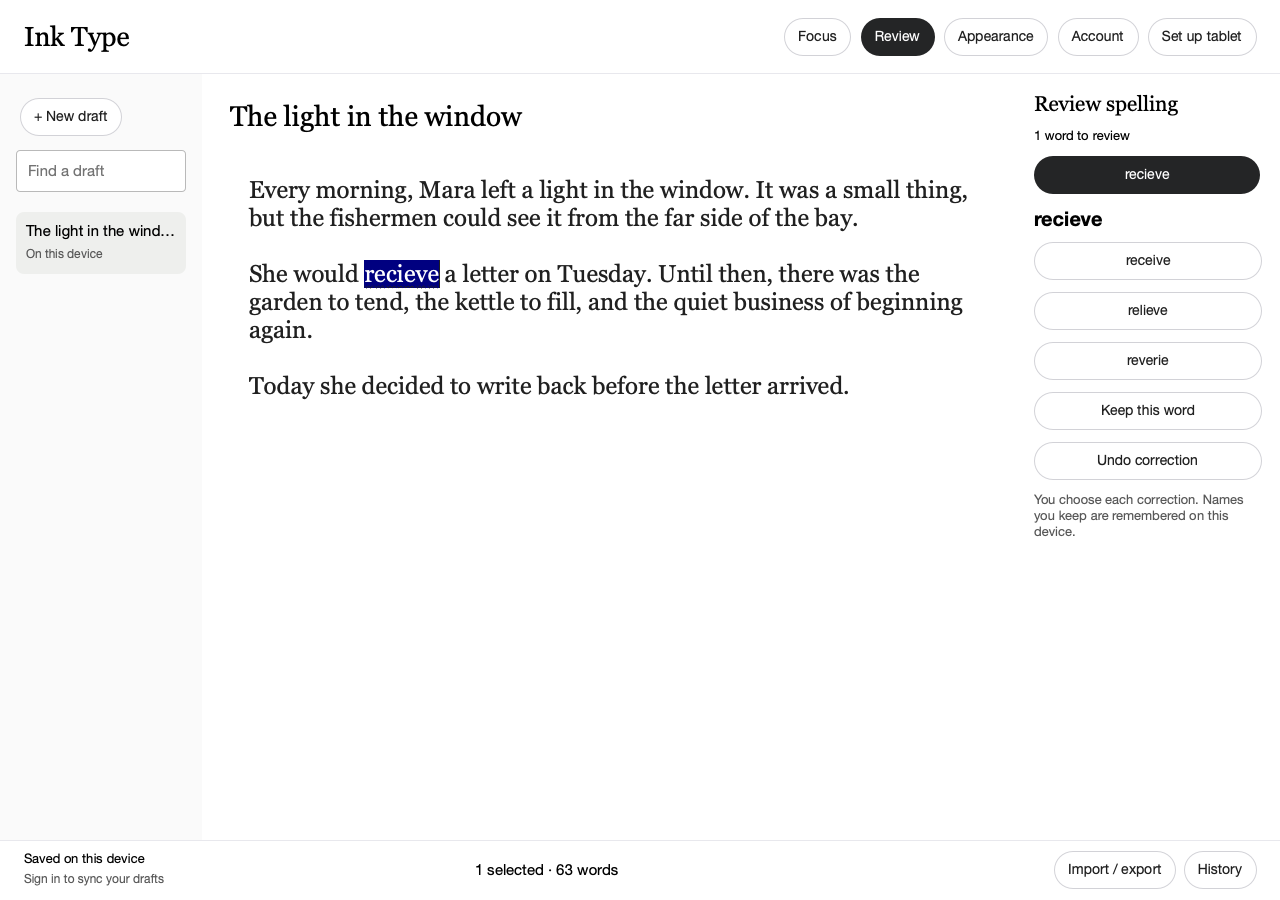
English, checked on your device
A second look. At your pace.
Underlines and suggestions help you catch a missed letter. Choose each correction, undo
it, or remember a name. US English is included; UK English is an optional local module.
Spelling works without the internet. No manuscript is sent to a spelling service.
A sense of progress
Count the words. Then carry on.
See the whole manuscript or just your selection. Hide the count and enter Focus when you
want the page to yourself. Save a copy as ordinary text or Markdown.
Drafts save on your device as you type. Earlier versions are there when you need them.
A guide you can come back to
First, get to know your tablet.
You can write on the Mac now. There is no need to enable Developer Mode to try this
preview.
Illustrated reference: OS 3.27.3.0. Newer versions may group settings
differently.
Read before changing this setting.
First activation of Developer Mode erases Paper Pro’s files and settings and
weakens software security. Save your notebooks elsewhere and open the copies to
check them. A readable PDF is not a complete editable backup.
reMarkable says it may decline support for modified software and exclude faults
caused by modifications from warranty or protection-plan coverage. Read its terms
before deciding.
Wait for a validated tablet release before resetting your tablet for Ink Type.
reMarkable 1 and 2 don’t need Paper Pro’s Developer Mode reset procedure. The Mac
app can guide a local USB connection check. Tablet installation is not available in
this preview.
94 seconds · English narration · captions · reconstructed UI based on actual screen
photographs. The film explains the procedure; it cannot change your tablet.
Read the steps instead
Back up your files and open the copies. First activation erases the tablet.
From the home screen, open the menu, then Settings.
Choose General → Software. Some versions add a Paper Tablet group.
Expand Advanced, then choose Developer mode.
Read the warning on your tablet. Only continue after verifying your backup. Follow
its own confirmation and passcode prompts.
Wait for the restart and finish setup. Later, connect a USB data cable and
continue in the desktop app.
Our current preview stops at a connection check. It does not install a tablet app.
Check your version first.
This guide illustrates OS 3.27.3.0. We haven’t verified other layouts. Use the
manufacturer’s instructions and the labels on your own tablet; there is no need to
enable Developer Mode for the Mac preview.
Version 0.1.0 · macOS 13 or later · preview Ad-hoc signed; not notarized. Windows
and Linux desktop downloads are not available yet.
Once it’s downloaded
Unzip Ink Type and move it to Applications.
Open Ink Type. Choose Set up later to start a draft on your Mac.
Use Account to sign in with your email. Use the same email in the
browser; its code is separate from a tablet password.
macOS may block this local preview because it isn’t notarized. Use the system’s Privacy
& Security settings only if you trust this build.
Apple’s explanation ↗
A few practical details.
Is this free and open source?
The application code is GPL-3.0-only, and this preview includes a source archive. The
app and hosted preview are free to try. A public GitHub repository and optional hosted
plans can follow later. No reMarkable Connect subscription is required.
Drafts save locally. When you sign in to your configured service, text is also stored
there. Each account has its own local workspace. The service can read synced text; this
version has no end-to-end encryption. Spelling stays entirely on your device.
Can I install this on my tablet today?
No. The guided connection check is real, but a compatible tablet build, e-ink behavior,
physical keyboard input and recovery still need validation. Don’t reset your tablet just
for this Mac preview.
How do I leave or take my writing elsewhere?
Choose Import / export → Save a copy. TXT and Markdown remain editable in other
applications. Signing out keeps your local copies separate from other accounts.